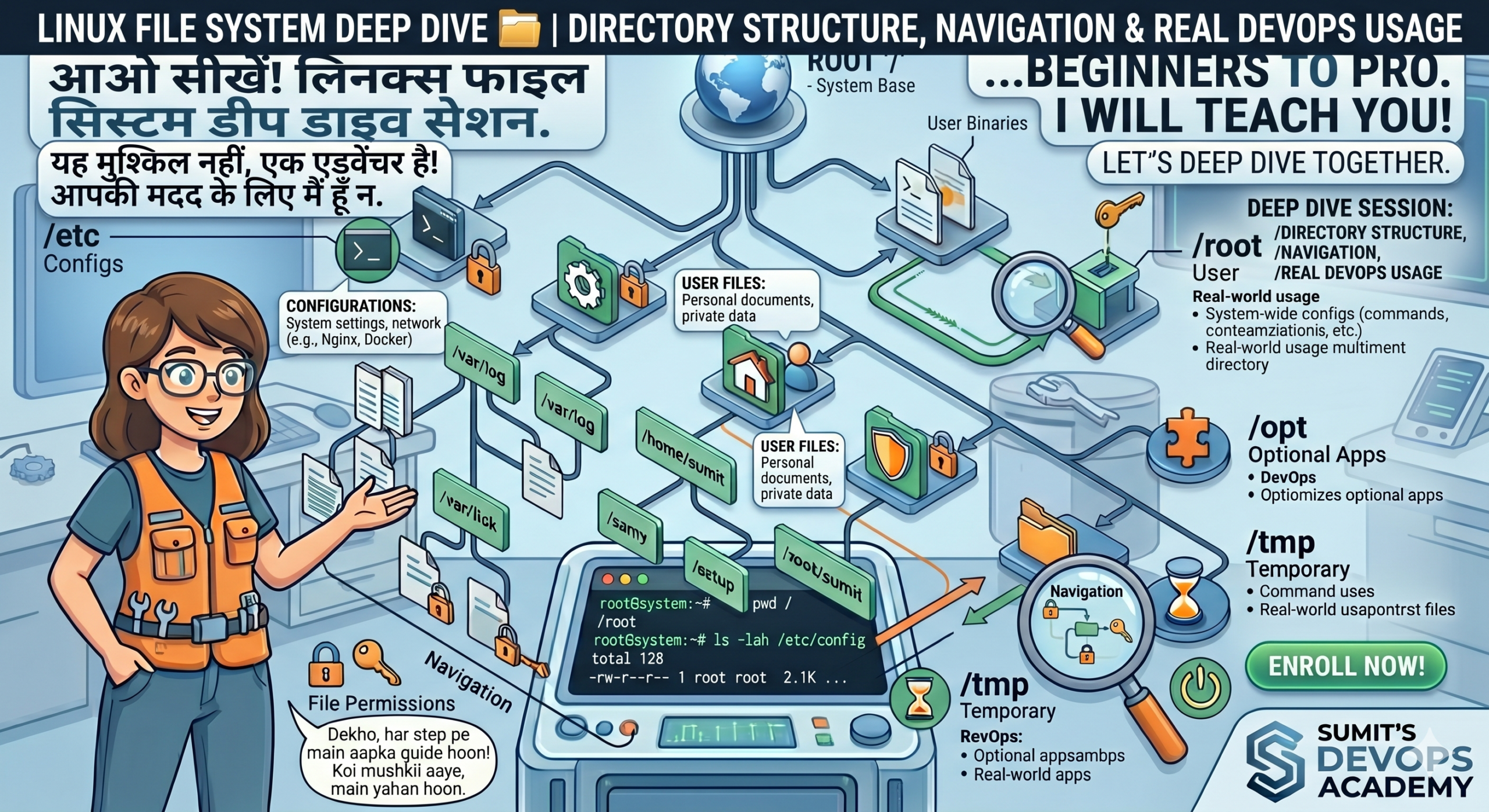
Linux File System Deep Dive 🗂️ | Directory Structure, Navigation & Real DevOps Usage
Welcome Techies! If you want to master Linux like a pro, you must understand where every file lives. Aaiye, bilkul asaan bhasha mein seekhte hain.
📂 Essential Directories
| Path | DevOps Real-World Usage |
|---|---|
| /etc | All config files (Nginx, Docker, SSH) live here. |
| /var/log | The first place to check when your server crashes. |
| /home | Personal space for all non-root users. |
| /tmp | Temporary data that wipes out on reboot. |
🛠️ 10+ Practical Scenarios
1. To identify your exact current location in the directory tree:
pwd
Hinglish: Jab aap Linux ki galiyon mein kho jayein, toh ye command aapko batayegi ki aap abhi kaunse folder ke andar baithe ho.
2. Navigating to the system configuration directory to modify server settings:
cd /etc
Hinglish: System ki koi bhi setting badalni ho (jaise password ya network), toh rasta hamesha /etc se hi hokar jata hai.
3. Monitoring live application errors for real-time troubleshooting:
tail -f /var/log/syslog
Hinglish: Server mein kya kalesh ho raha hai, ye live dekhne ke liye hum /var/log ki files ko follow karte hain.
4. Viewing hidden configuration files often used for environment variables:
ls -la
Hinglish: Jo files “.” se shuru hoti hain wo normal ‘ls’ se nahi dikhti. -a lagane se saari chupi hui files bahar aa jati hain.
5. Analyzing disk space availability to prevent server downtime:
df -h
Hinglish: Server full hone wala hai ya khali hai? Ye check karne ke liye df -h sabse best hai, ye GB/MB mein data dikhata hai.
6. Creating a nested directory structure for a new project in one go:
mkdir -p project/src/data
Hinglish: Ek-ek karke folder banane ki mehnat chodo, -p lagao aur poori family tree ek saath khadi kar do.
7. Checking the size of a specific directory to find what’s consuming space:
du -sh /var/www
Hinglish: Pata lagana hai ki kaunsa folder mota (heavy) ho raha hai? Toh du (disk usage) ka use karein.
8. Jumping back to the previous directory instantly without typing the path:
cd –
Hinglish: Maan lo aap ek lambe raste se aaye ho aur turant pichli wali jagah wapas jana hai, toh ye short-cut hai.
9. Returning to your user home directory from anywhere in the system:
cd ~
Hinglish: Kahin bhi raho, apne ghar (Home) wapas aane ke liye bas ye tilde ~ symbol kaafi hai.
10. Checking system uptime and load average to monitor performance:
uptime
Hinglish: Server thak gaya hai ya fresh hai? Ye command batayegi ki laptop/server kitne ghanto se lagatar chal raha hai.
Pro DevOps Tip: Always use tab-completion! Typing full paths is for beginners. Linux mein thoda likho aur Tab dabao, rasta apne aap ban jayega.
🚀 Happy Learning, Sumit! Keep Exploring the DevOps World.