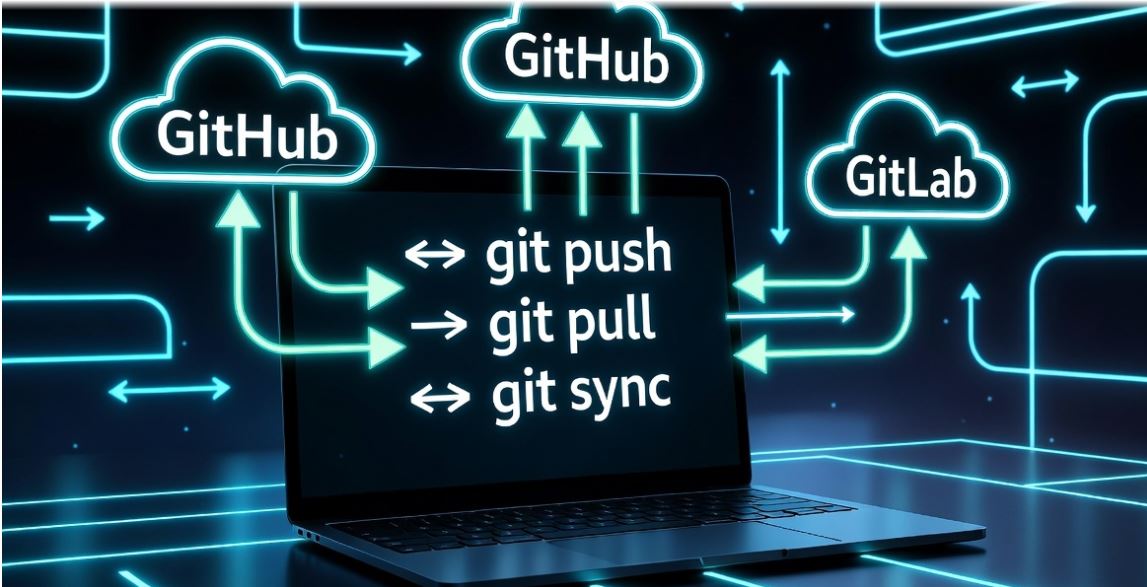
10 comprehensive chapters · Line-by-line command explanations · Real CI/CD projects · Production workflows
📦 DEVOPS VERSION CONTROL · CI/CD MASTERY
Git, GitHub & GitHub Actions
Git, GitHub & GitHub Actions
Complete DevOps Course
10 comprehensive chapters · Line-by-line command explanations · Real CI/CD projects · Production workflows
📖 COURSE CURRICULUM
01Git Basics & Repository Setup
02Branching & Merging Strategies
03Undoing Changes & Recovery
04GitHub Collaboration & PR Workflow
05GitHub Actions Fundamentals
06CI/CD Pipeline Design
07Testing & Linting Automation
08Docker Build & Push Actions
09Secrets Management & Security
10Production Deployment Workflows
Chapter 1: Git Basics & Repository Setup
📖 Definition: Git is a distributed version control system (DVCS) created by Linus Torvalds in 2005. It tracks changes, enables collaboration, and stores complete history locally. Key concepts: repository (repo), commit (snapshot), branch (parallel development), HEAD (current position).
$ git --version
git version 2.40.1
$ git config --global user.name "Your Name"
$ git config --global user.email "your.email@example.com"
$ git init my-project
Initialized empty Git repository in /my-project/.git/
$ cd my-project
$ echo "# My Project" > README.md
$ git status
Untracked files: README.md
$ git add README.md
$ git commit -m "Initial commit: add README"
[main (root-commit) a1b2c3d] Initial commit: add README
$ git log --oneline
a1b2c3d Initial commit: add README
🔍 Line-by-Line Explanation:
•
•
•
•
•
•
•
•
git --version → Verifies Git installation.•
git config --global → Sets identity for all commits (critical for attribution).•
git init → Creates .git directory (the repository database).•
git status → Shows working directory state (untracked/modified/staged).•
git add → Stages files for commit (moves to staging area).•
git commit -m → Creates snapshot with message. Each commit has unique SHA hash.•
git log --oneline → Shows commit history compactly.📁 CASE PROJECT 1.1: Team Onboarding — First Repository Setup
Scenario: New developer joins your team. They need to set up Git, clone the project repository, and make their first contribution.
$ git clone https://github.com/company/project.git
$ cd project
$ git checkout -b feature/add-logging
$ echo "console.log('App started');" >> app.js
$ git add app.js
$ git commit -m "feat: add startup logging"
$ git push origin feature/add-logging
🎯 Solution:
git clone downloads remote repo. git checkout -b creates new branch. Push creates remote branch for PR review.📁 CASE PROJECT 1.2: Global .gitignore for Node.js Projects
Scenario: Prevent node_modules, environment files, and logs from being committed.
$ cat > .gitignore << EOF
node_modules/
.env
*.log
dist/
.DS_Store
coverage/
EOF
$ git add .gitignore
$ git commit -m "chore: add gitignore for Node.js"
$ git rm -r --cached node_modules # Remove already tracked if any
📝 Explanation: .gitignore prevents unwanted files from ever being staged.
git rm --cached removes files from Git tracking but keeps locally.Chapter 2: Branching & Merging Strategies
📖 Definition: Branches allow parallel development. main/master = production-ready. feature/* = new features. develop = integration. GitFlow vs GitHub Flow. Merge combines branches (fast-forward vs 3-way merge).
$ git branch feature/new-dashboard
$ git checkout feature/new-dashboard
Switched to branch 'feature/new-dashboard'
$ git checkout -b hotfix/critical-bug # Create and switch in one command
$ git branch -a # List all branches (local + remote)
$ git merge feature/new-dashboard
$ git branch -d feature/new-dashboard # Delete local branch after merge
$ git push origin --delete feature/new-dashboard # Delete remote branch
🌿 Explanation:
git checkout -b creates and switches. Merging integrates changes. Always delete merged branches to keep repository clean.📁 CASE PROJECT 2.1: GitFlow Implementation for Release Management
Scenario: Team needs structured release process with develop, release, and hotfix branches.
$ git checkout -b develop main
$ git checkout -b feature/user-auth develop
# ... work on feature ...
$ git checkout develop
$ git merge --no-ff feature/user-auth -m "Merge feature: user auth"
$ git checkout -b release/1.2.0 develop
$ # Fix release bugs, update version
$ git checkout main && git merge --no-ff release/1.2.0 -m "Release 1.2.0"
$ git tag -a v1.2.0 -m "Release version 1.2.0"
$ git push origin main --tags
🏷️ Explanation:
--no-ff preserves feature branch history. Tags mark release points. Hotfix branches branch from main, merge back to both main and develop.📁 CASE PROJECT 2.2: Resolving Merge Conflicts Strategically
Scenario: Two developers modified the same file. Resolve conflicts manually.
$ git merge feature/payment
Auto-merging src/payment.js
CONFLICT (content): Merge conflict in src/payment.js
$ git status # Shows both modified
$ cat src/payment.js
<<<<<<< HEAD
function processPayment(amount) { return amount * 1.1; }
=======
function processPayment(amount, tax=0.1) { return amount * (1 + tax); }
>>>>>>> feature/payment
$ # Edit file to keep both improvements:
function processPayment(amount, tax=0.1) { return amount * (1 + tax); }
$ git add src/payment.js
$ git commit -m "merge: resolve payment processor conflict"
⚡ Explanation: Conflict markers show HEAD (current branch) vs incoming changes. Manually edit to desired result, then stage and commit the resolution.
Chapter 3: Undoing Changes & Recovery
📖 Definition: Git provides multiple undo mechanisms:
git reset (move HEAD), git revert (safe undo via new commit), git restore (discard working directory changes), git reflog (recover lost commits).$ git restore file.txt # Discard unstaged changes
$ git restore --staged file.txt # Unstage but keep changes
$ git reset --soft HEAD~1 # Undo last commit, keep changes staged
$ git reset --hard HEAD~1 # ⚠️ Completely remove last commit (dangerous)
$ git revert HEAD # Creates new commit that undoes last commit (safe)
$ git reflog
a1b2c3d HEAD@{0}: commit: fix login bug
e4f5g6h HEAD@{1}: commit: add feature
...
$ git reset --hard e4f5g6h # Recover to previous state🔄 Explanation:
git revert is safest for shared branches (non-destructive). git reset --hard rewrites history — never use on public branches. git reflog shows all HEAD movements and can recover “lost” commits.📁 CASE PROJECT 3.1: Accidentally Committed Secrets — Emergency Cleanup
Scenario: You committed an API key to Git. Remove it completely from history (including all traces).
$ git log --oneline | head -5
abc1234 fix: add API key (SECRET!)
def5678 previous good commit
$ git rebase -i HEAD~2
# Change 'pick' to 'edit' for abc1234
$ git restore --staged config.js
$ echo "API_KEY=CHANGE_ME" > config.js
$ git add config.js && git commit --amend --no-edit
$ git rebase --continue
$ git push --force-with-lease origin main
🔐 Explanation: Interactive rebase (
-i) allows editing commits. Remove secret, amend, then force-push. Also immediately rotate the leaked API key. Use git-secrets or pre-commit hooks to prevent future leaks.📁 CASE PROJECT 3.2: Recover Deleted Branch
Scenario: You deleted a branch that hadn’t been merged. Restore it from reflog.
$ git reflog | grep "checkout: moving from feature"
a1b2c3d HEAD@{12}: checkout: moving from feature/new-ui to main
$ git checkout -b feature/new-ui a1b2c3d
Switched to a new branch 'feature/new-ui'
$ git log --oneline -3
# Branch restored with all commits!
💾 Explanation: Git doesn’t immediately delete commits. Reflog records every HEAD movement for ~90 days. Find the commit hash before deletion and recreate branch from it.
Chapter 4: GitHub Collaboration & Pull Request Workflow
📖 Definition: GitHub hosts Git repositories and adds collaboration features: Pull Requests (PRs) for code review, Issues for tracking, Actions for CI/CD, Projects for Kanban, and Discussions for community.
$ git remote add origin https://github.com/user/repo.git
$ git push -u origin main
$ git checkout -b feature/awesome
$ git push origin feature/awesome
# Now open Pull Request on GitHub.com
$ git pull --rebase origin main # Sync before merging PR
$ git push origin feature/awesome --force-with-lease
🤝 Explanation:
git remote add links local repo to GitHub. PR workflow: push branch → create PR → review → merge. --rebase keeps history linear. --force-with-lease is safer than --force.📁 CASE PROJECT 4.1: Fork & Pull Request to Open Source
Scenario: Contribute to an open-source repository using fork workflow.
# On GitHub: Fork the repository
$ git clone https://github.com/YOUR_USERNAME/upstream-repo.git
$ cd upstream-repo
$ git remote add upstream https://github.com/original/upstream-repo.git
$ git checkout -b fix/typo
$ # Make changes, commit, push
$ git push origin fix/typo
# Create PR from YOUR_USERNAME/fix/typo → original/main
$ git fetch upstream
$ git checkout main && git merge upstream/main
🍴 Explanation: Fork creates personal copy. Upstream remote tracks original repo. Sync main with upstream before new features. PR from fork to original.
📁 CASE PROJECT 4.2: Automate PR Labeling with GitHub Actions
Scenario: Automatically label PRs based on branch name or file changes.
# .github/workflows/pr-labeler.yml
name: PR Labeler
on: pull_request
jobs:
  label:
    runs-on: ubuntu-latest
    steps:
      - uses: actions/labeler@v4
        with:
          repo-token: "${{ secrets.GITHUB_TOKEN }}"
🏷️ Explanation: GitHub Actions workflow triggers on PR events. labeler action reads config from
.github/labeler.yml to auto-add labels like ‘documentation’, ‘bug’, ‘enhancement’.Chapter 5: GitHub Actions Fundamentals
📖 Definition: GitHub Actions is CI/CD platform native to GitHub. Workflows = YAML files in
.github/workflows/. Events trigger workflows (push, PR, schedule). Jobs run on runners (Ubuntu, Windows, macOS). Steps execute actions or shell commands.# .github/workflows/ci.yml
name: CI Pipeline
on: [push, pull_request]
jobs:
build:
runs-on: ubuntu-latest
steps:
- uses: actions/checkout@v4
- name: Setup Node.js
uses: actions/setup-node@v4
with:
node-version: '18'
- name: Install dependencies
run: npm ci
- name: Run tests
run: npm test⚙️ Explanation:
actions/checkout@v4 clones repository. actions/setup-node installs Node.js. run executes shell commands. Each job runs in fresh environment.📁 CASE PROJECT 5.1: Matrix Build Strategy for Multiple Node Versions
jobs:
  test:
    runs-on: ubuntu-latest
    strategy:
      matrix:
        node-version: [16, 18, 20]
    steps:
      - uses: actions/checkout@v4
      - uses: actions/setup-node@v4
        with:
          node-version: ${{ matrix.node-version }}
      - run: npm ci && npm test
📊 Explanation: Matrix strategy runs jobs in parallel for each Node version. Ensures compatibility across versions without duplicating code.
Chapter 6: CI/CD Pipeline Design
📁 CASE PROJECT 6.1: Complete CI Pipeline with Caching
name: Complete CI
on: [push, pull_request]
jobs:
  ci:
    runs-on: ubuntu-latest
    steps:
      - uses: actions/checkout@v4
      - uses: actions/setup-node@v4
        with:
          node-version: '18'
          cache: 'npm'
      - run: npm ci
      - run: npm run lint
      - run: npm run test:coverage
      - name: Upload coverage
        uses: codecov/codecov-action@v3
🚀 Explanation:
cache: 'npm' speeds up builds by caching node_modules. Codecov action uploads test coverage reports.Chapter 7: Testing & Linting Automation
📁 CASE PROJECT 7.1: ESLint + Prettier Check in PRs
- name: Lint & Format Check
  run: |
    npm run lint
    npm run format:check
- name: Run Unit Tests
  run: npm run test:unit
- name: Run Integration Tests
  run: npm run test:integration
✅ Explanation: Multiple test stages ensure code quality. Linting catches style issues early. Unit tests verify logic. Integration tests test API/database interactions.
Chapter 8: Docker Build & Push Actions
📁 CASE PROJECT 8.1: Build and Push to Docker Hub
- name: Login to Docker Hub
  uses: docker/login-action@v3
  with:
    username: ${{ secrets.DOCKER_USERNAME }}
    password: ${{ secrets.DOCKER_TOKEN }}
- name: Build and push
  uses: docker/build-push-action@v5
  with:
    push: true
    tags: user/app:latest,user/app:${{ github.sha }}
🐳 Explanation: Login action authenticates with Docker Hub. Build-push action builds image and pushes with two tags: latest and commit SHA for traceability.
Chapter 9: Secrets Management & Security
📁 CASE PROJECT 9.1: Secure Secrets in GitHub Actions
# Store secrets in GitHub → Settings → Secrets and variables → Actions
- name: Deploy to AWS
  env:
    AWS_ACCESS_KEY_ID: ${{ secrets.AWS_ACCESS_KEY_ID }}
    AWS_SECRET_ACCESS_KEY: ${{ secrets.AWS_SECRET_ACCESS_KEY }}
  run: |
    aws s3 sync build/ s3://my-bucket
    aws cloudfront create-invalidation --distribution-id ${{ secrets.CF_DIST_ID }} --paths "/*"
🔒 Explanation: Secrets are encrypted and never appear in logs. Use environment-specific secrets (dev/staging/prod). Never hardcode secrets in workflow files.
Chapter 10: Production Deployment Workflows
📁 CASE PROJECT 10.1: Manual Approval for Production Deploy
name: Deploy to Production
on:
  workflow_dispatch:
    inputs:
      version:
        description: 'Version to deploy'
        required: true
jobs:
  deploy:
    runs-on: ubuntu-latest
    environment: production
    steps:
      - uses: actions/checkout@v4
      - name: Deploy to Kubernetes
        run: |
          kubectl set image deployment/myapp app=myapp:${{ github.event.inputs.version }}
          kubectl rollout status deployment/myapp
🏭 Explanation:
workflow_dispatch allows manual trigger. environment: production requires approval. Rollout status waits for successful deployment.🌓 Light / Dark Mode
“`
